Virtual Floors
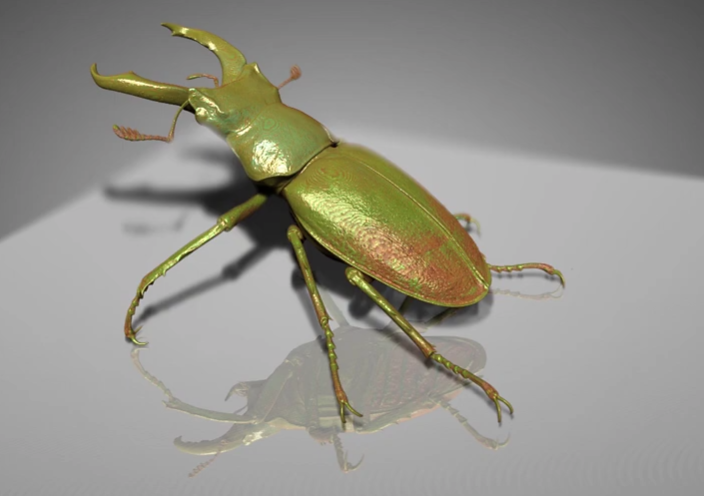
You can improve the visualization of 3D renderings by adding a virtual floor to the current 3D view, as shown below. You can add and adjust reflectivity, choose a color for the floor, adjust its distance from the objects in the view, and fine-tune its size, position, and tilt.
Virtual floor with reflective surface
Check the Virtual floor option in the Virtual Floor panel to add the floor to the current 3D view.
Virtual Floor panel

 Rendering Tutorial - Virtual Floors
The following video tutorial demonstrates how to improve the visualization of 3D renderings by adding a virtual floor.
Virtual Floors (3:25)
You also view this video and others on our YouTube channel (https://www.youtube.com/channel/UCuFl2zHcyStR2RJpMXbi6ow).
The following topics are discussed in the tutorial.
-
Enabling the virtual floor option in a scene and adjusting its position, orientation, and reflectiveness.
-
Creating a 360 rotation around a scan to demonstrate how virtual floors can be included in high-impact animated sequences.
